MCP Configuration
The Model Context Protocol (MCP) lets external AI clients — such as Cursor, Claude Desktop, or custom agents — connect to Trust3 and access governance context outside the Trust3 UI. Use MCP when you want inventory, policy, and trust-score answers in the tools your team already uses.
For in-product governance questions, use GIA (Governance Intelligence Agent). MCP is the external, protocol-based path to similar governance data.
Prerequisites
Before configuring an MCP client, ensure you have:
| Requirement | Description |
|---|---|
| Trust3 account | Access to your Trust3 AI Governance tenant |
| MCP scoped API key | A scoped key with MCP (read) — grants read-only access for MCP clients. Do not reuse collector or other API keys unless they include this scope. |
| Inventory (recommended) | AI asset inventory populated via the AI Assets Collector so MCP queries return meaningful governance context |
Generate an MCP scoped API key
MCP clients authenticate with a scoped API key — not the same key you use for the AI Assets Collector. Each key is limited to the permissions you select at creation time.
For MCP configuration, create a key with the MCP (read) scope. That scope allows read-only access to governance context through the MCP server (inventory, policies, trust scores, and similar read operations your role can already see in Trust3).
Who can create keys
Any Trust3 role can generate an MCP (read) scoped key for their own use.
Available scopes
Today, MCP (read) is the only scope used for MCP client configuration. Additional scopes may be added in future releases.
- Log in to Trust3 AI.
- Go to Settings → API Keys.
- Click Generate scoped key.
- Set:
- Name — a label you will recognize later (for example
cursor-mcporclaude-desktop). - Description (optional) — where the key is used or who owns it (for example
Cursor on MacBook). - Expiry — select 7 days, 30 days, 90 days, 1 year, or Custom.
- Scope — select MCP (read).
- Name — a label you will recognize later (for example
- Click Generate, then copy the key immediately. You will not be able to view the full key again.
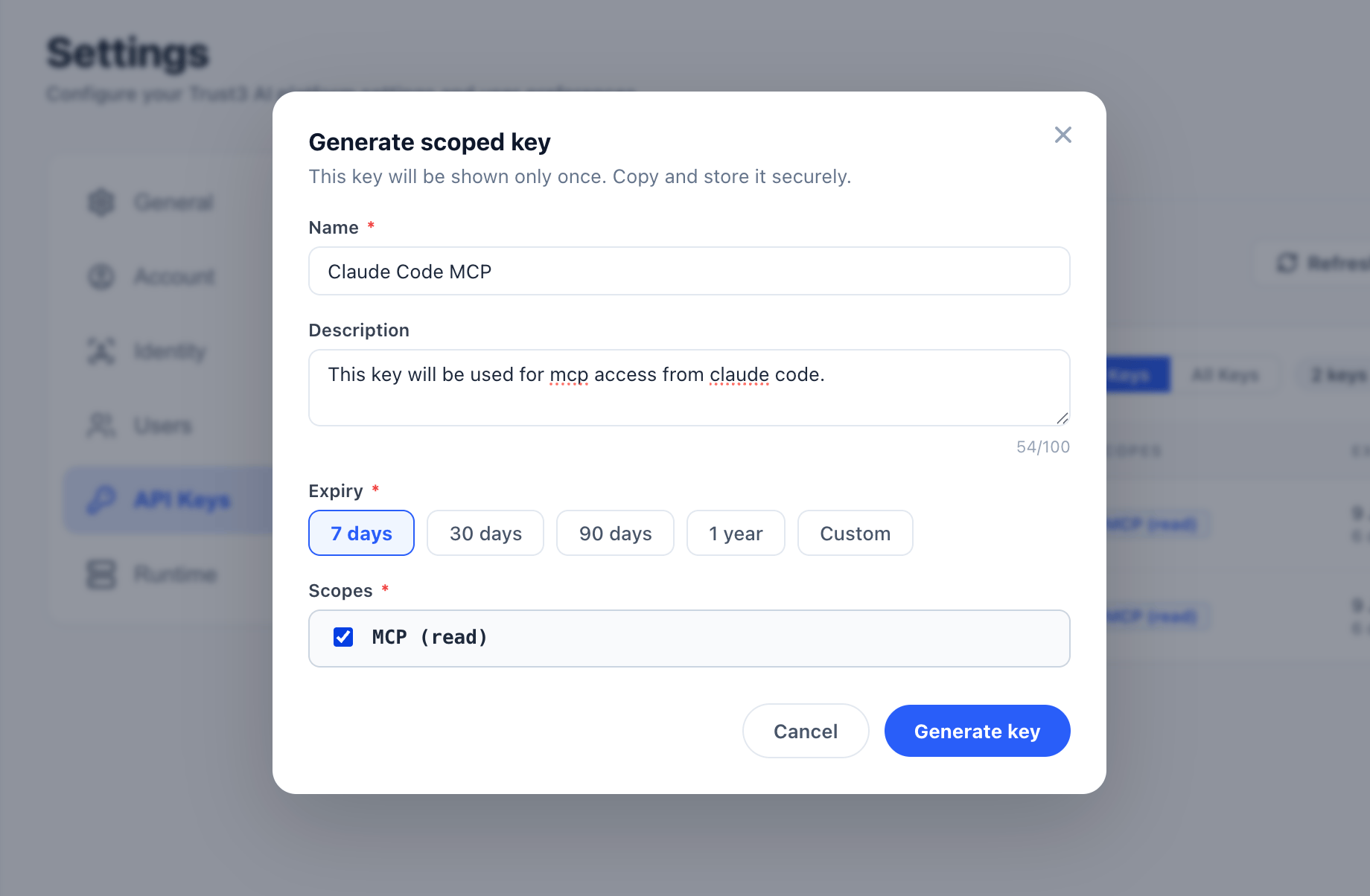
Use this key as the value for x-trust3ai-key in your MCP configuration below.
MCP client configuration
Add the Trust3 MCP server to your client's MCP configuration file (for example mcp.json or the equivalent for your AI tool).
| JSON | |
|---|---|
Replace <api-key> with the key you generated above.
| Parameter | Description |
|---|---|
| Client name | trust3ai-mcp-server — customize if your client requires a different key |
| transport | streamable_http — HTTP-based MCP transport |
| url | https://api.na.trust3ai.com/mcp — Trust3 MCP server endpoint (NA cloud) |
| Accept | Required for streamable HTTP responses |
| x-trust3ai-key | Your MCP (read) scoped API key from Settings → API Keys |
Verify the connection
- Save your MCP configuration file.
- Restart your AI client (or reload MCP servers if the client supports hot reload).
- Confirm the Trust3 MCP server appears in the client's MCP server list.
- Ask a governance question (for example, "What agents need attention?") and confirm you receive a response grounded in your inventory.
Troubleshooting
| Issue | What to check |
|---|---|
| Connection refused | Confirm the URL is https://api.na.trust3ai.com/mcp and your network allows outbound HTTPS to api.na.trust3ai.com |
| Authentication failed | Confirm the key has the MCP (read) scope, has not expired, and is sent in the x-trust3ai-key header. Collector or other non-MCP keys will not work for MCP clients. |
| Empty or generic answers | Ensure inventory has been ingested via the AI Assets Collector |